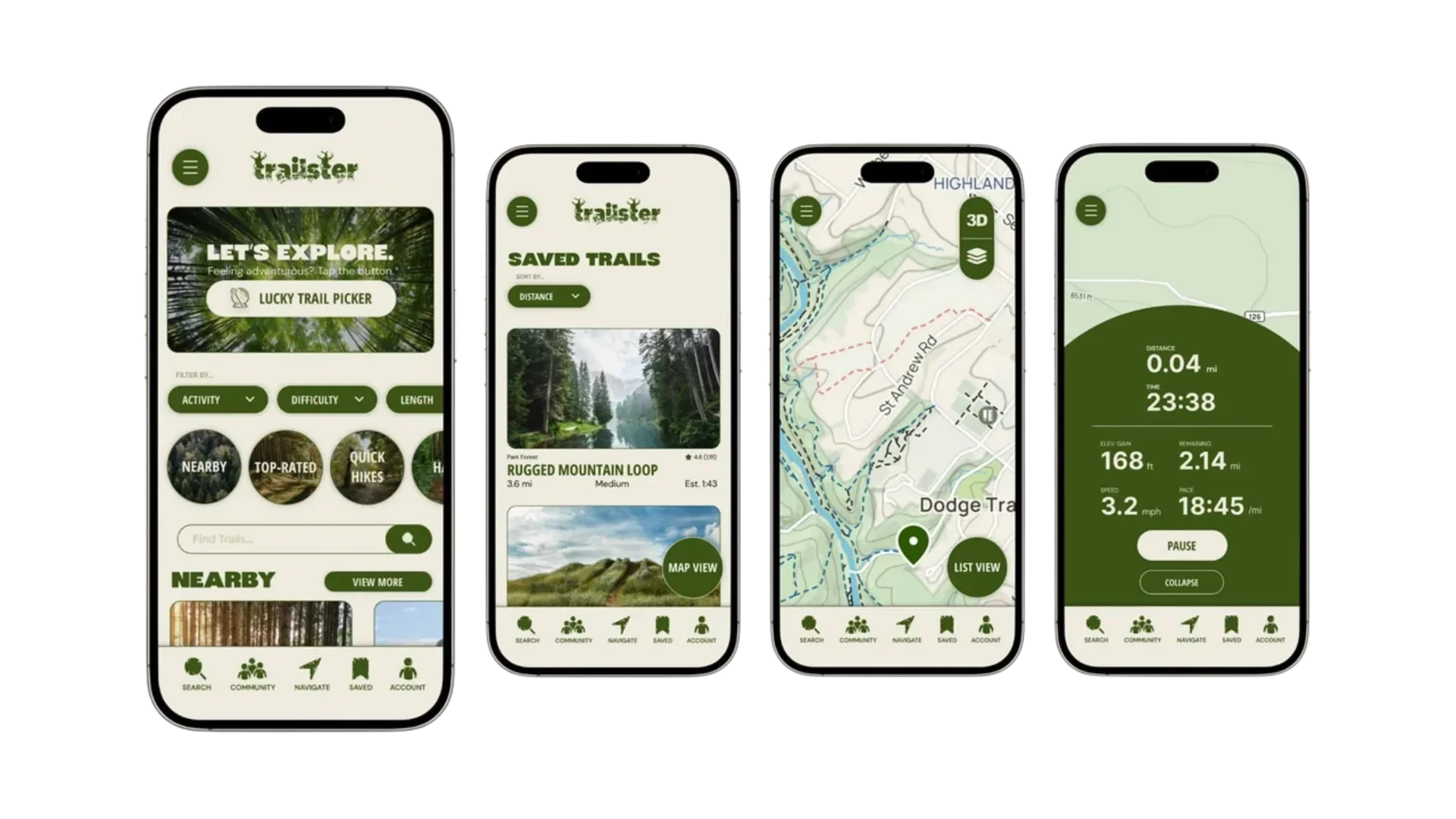
Trailster
Interaction DesignContextThe outdoor recreation industry has seen significant changes in today's digital world, and apps like AllTrails have made it easier than ever for hikers to find and save new trails. This case study explores my redesign of AllTrails into Trailster, an immersive version of the mobile app focusing on the animations of microinteractions.
User ResearchTo gain a more comprehensive understanding of the user being designed for, I began with user research. After looking into Trailster’s primary user bases, I created the following user persona:
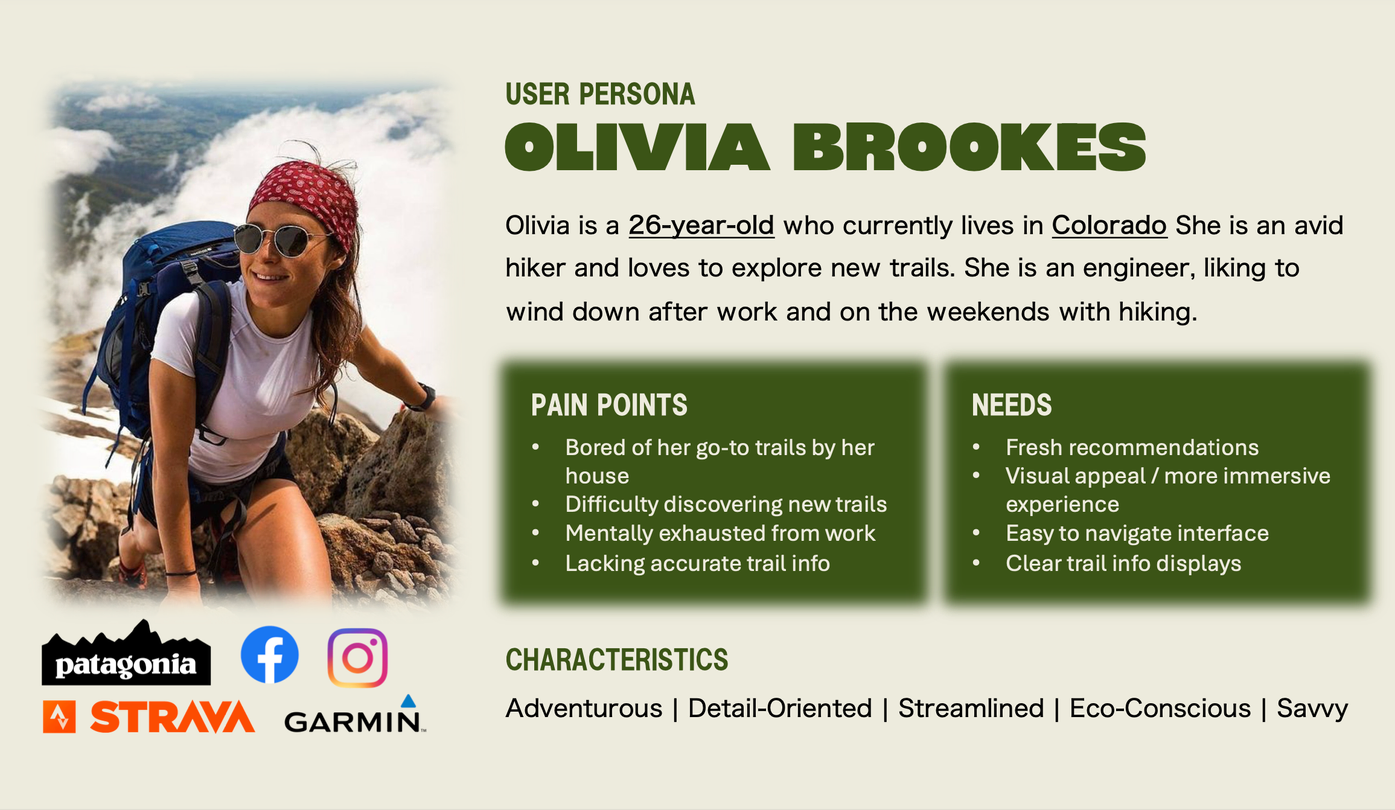
Working professionals like Olivia Brookes represent users who seek outdoor escapes but often struggle with decision fatigue from their daily routines. Many in this key audience experience mental exhaustion from work, making it essential to have an interface that helps reduce cognitive load and simplify the process of discovering new trails. These users also value visual appeal and immersive experiences, similar to those found in other popular lifestyle and travel apps they likely use. This research gives way to several key priorities in the redesign: creating a visually appealing interface, streamlining navigation, offering clear information displays, and developing an innovative recommendation system to help users break out of their usual hiking patterns.
GoalsIn redesigning this app, I focused on two primary goals:
Improving the user experience.
Implementing an intelligent recommendation system.
Creating a more engaging visual discovery interface.
Reducing cognitive load when using app.
Increasing engagement.
Designing a more immersive visual experience.
Implementing features that encourage regular use.
Introducing a new feature that gamifies trail selection.
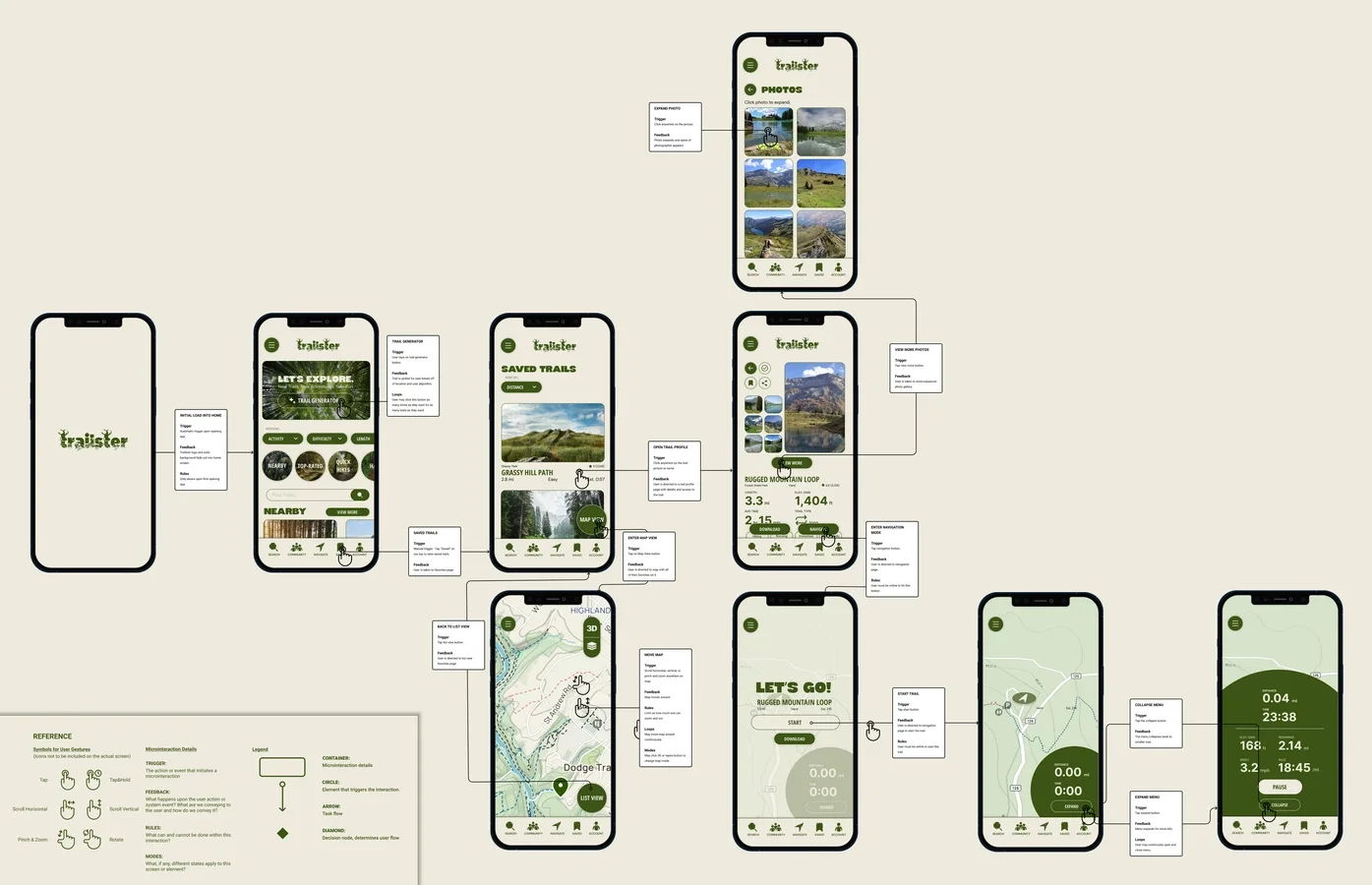
Task FlowFor the purpose of this project, I will be focusing on the following task flow:
Home Screen:
Explore trails by either:
Using the Trail Generator button for random, personalized trail suggestions.
Browsing trails under various categories.
Filtering trails by different factors.
Use the bottom bar to navigate between pages.
Saved Trails:
View a list of bookmarked trails.
See key trail details like distance, elevation, and time on each trail card.
Tap the button on the bottom right to access a map view of saved trails.
Tap anywhere on a trail card to go to the trail profile.
Trail Map:
Zoom in or out on the trail map.
Start navigating directly from the map.
Trail Profile:
Access trail profiles by tapping trail cards on either the home or saved pages.
View detailed trail information.
Tap "View More" to explore community photos of the trail.
Use the buttons above the navigation bar to download or start the trail.
Photos:
Browse a gallery of trail images.
Tap photos to enlarge.
Tap the "Close" button to exit the enlarged view.
Trail Activity:
Track real-time data like time, distance, speed, and elevation during the trail.
Switch between a basic or detailed view of trail stats.
Pause or stop the activity at any time.
This flow takes the user from trail discovery to saving and viewing trails and finally navigating and tracking a hike.
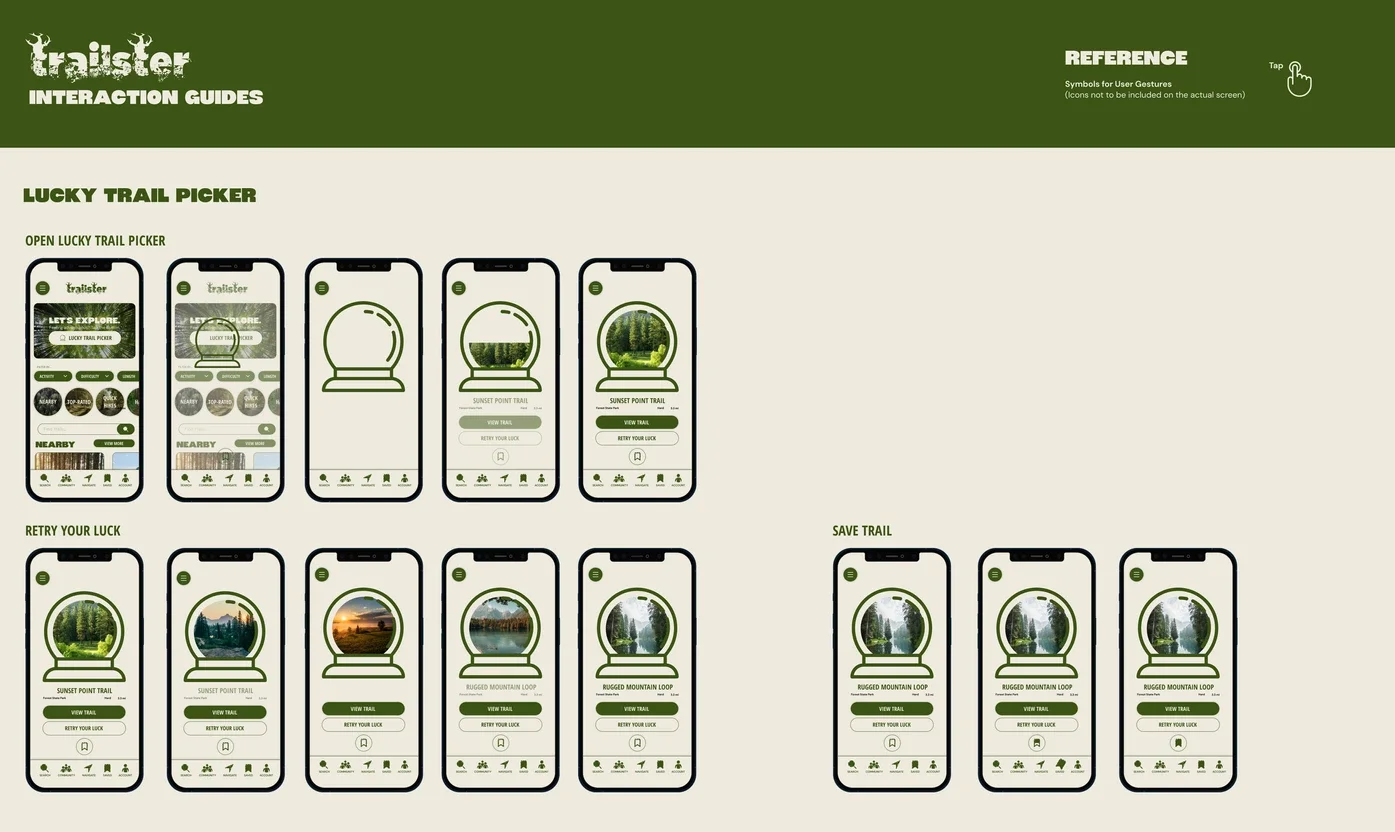
Interaction GuidesFor each animation, I outlined the planned movement through an interaction guide.
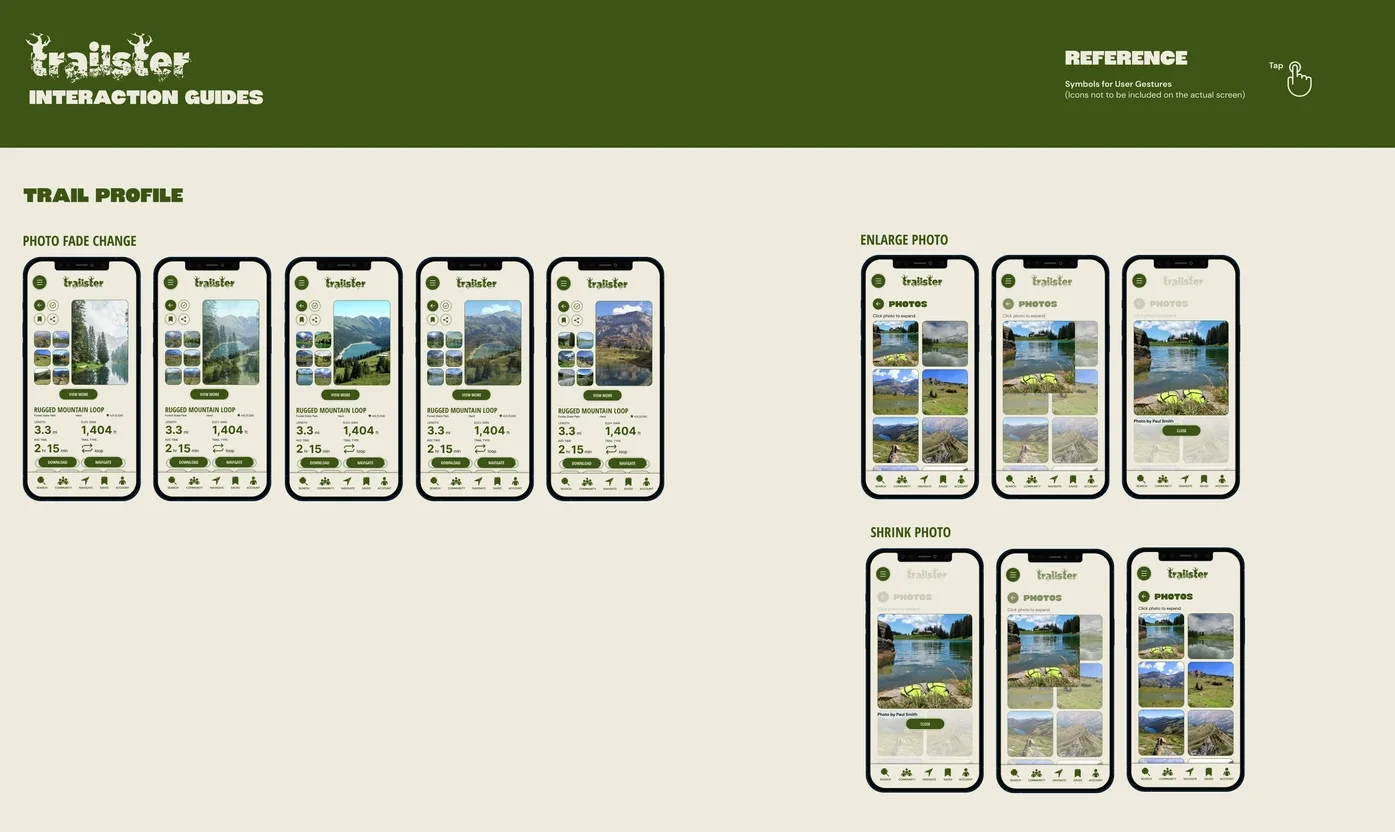
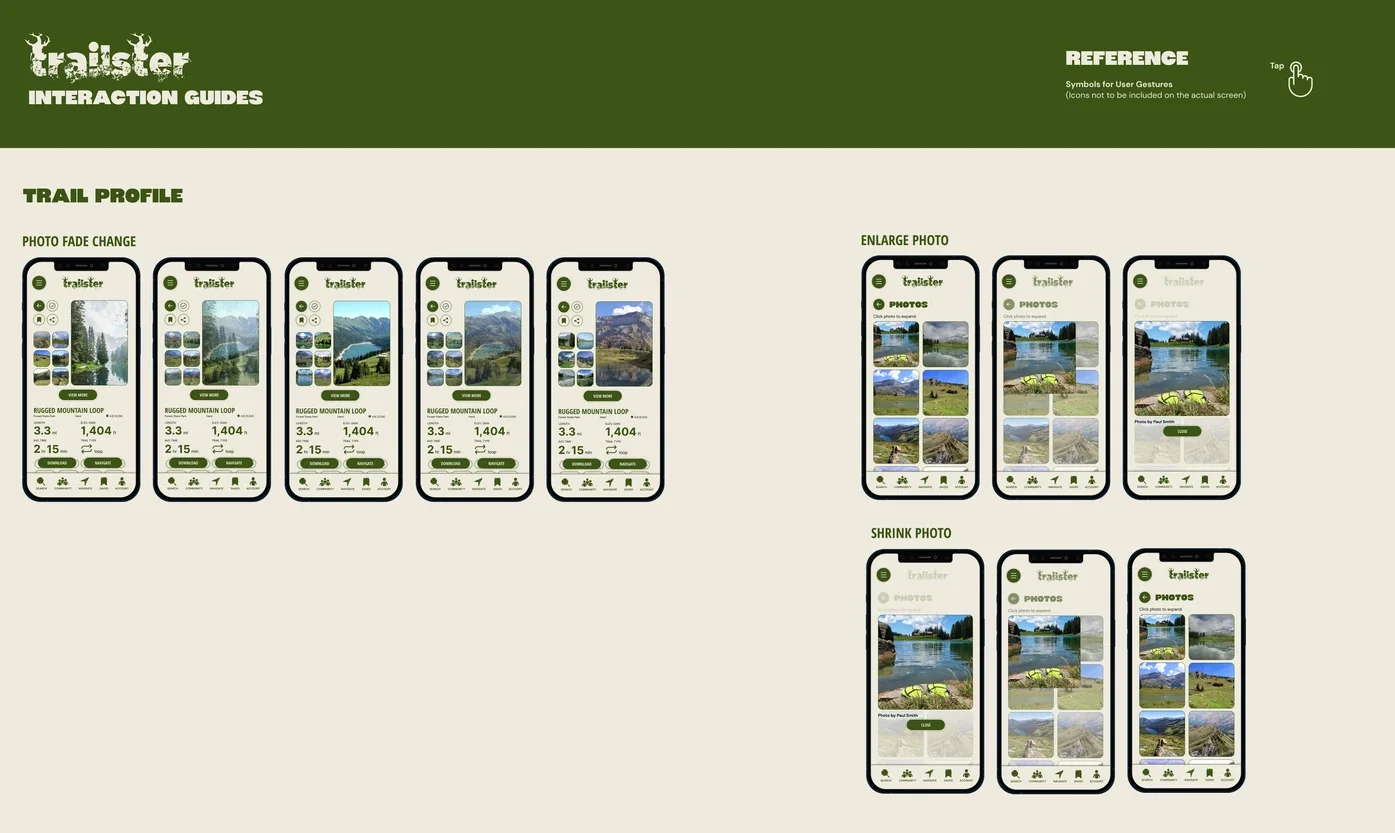
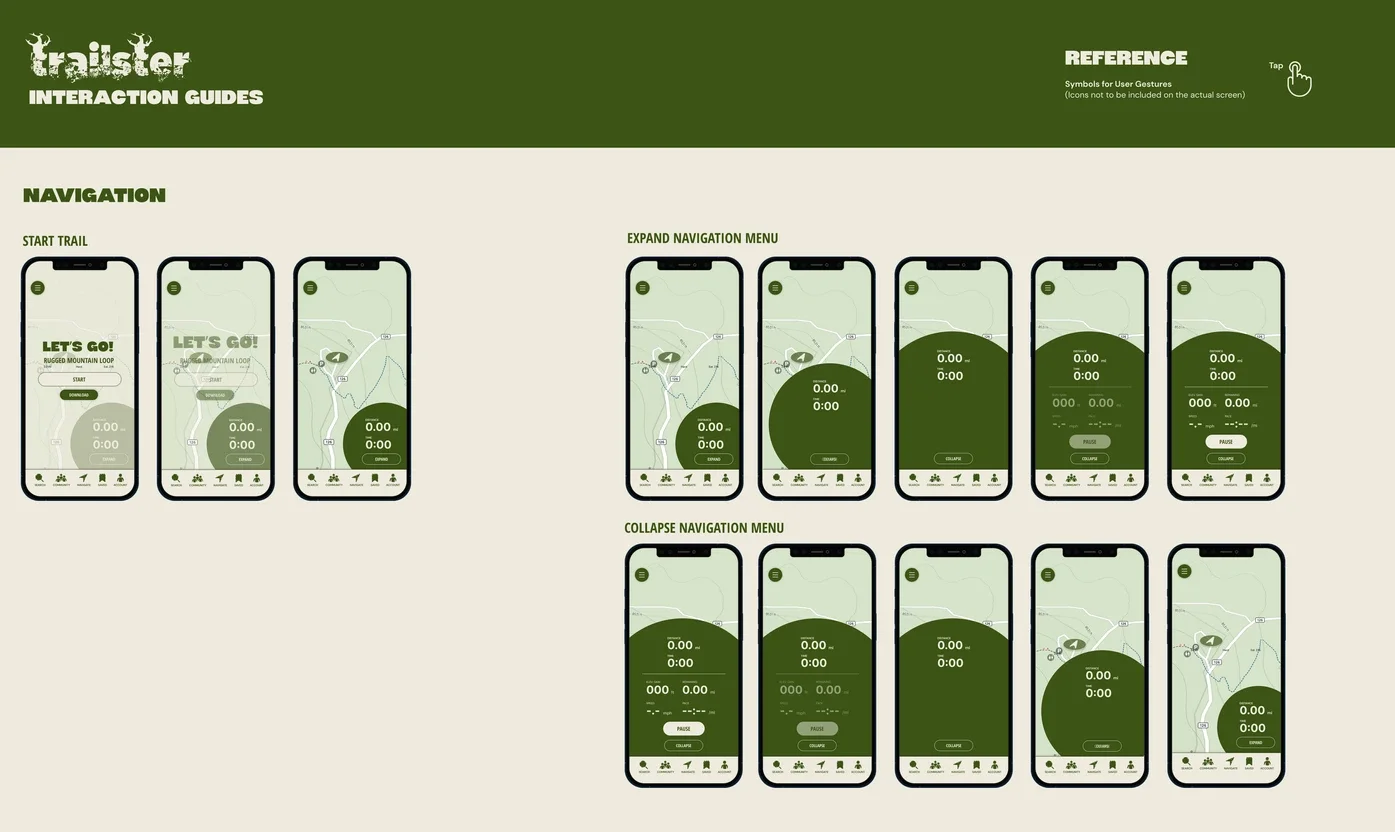
Final PrototypeThe final prototype of the app reflects the fun and outdoorsy while also sleek and modern vibe of the Trailster rebrand. Take a look below: